
Your windows, right where
you left them.
Transom is the window manager for Mac that snaps like Rectangle, scrolls like niri, and puts every window back the moment you plug in your monitor.
Free for 14 days · No account · macOS 14 Sonoma or later · Apple silicon
- SIP stays on
- Accessibility permission only
- No tracking, no account
- Works offline
- Pay once, no subscription
Every time you dock, you rebuild your desk.
macOS piles your windows onto one screen when a display disconnects, and doesn't put them back when it returns. Snapping apps forget. Tiling apps want config files. You end up dragging windows around several times a day.
Unplug, and it's chaos
Everything lands on the laptop screen in a heap. Plug back in and nothing returns.
Tilers shrink everything
Each new window splits the screen again until nothing is readable.
Power means config files
The strongest tools ask you to write TOML or disable System Integrity Protection.
Halves, thirds, full screen. From the keyboard.
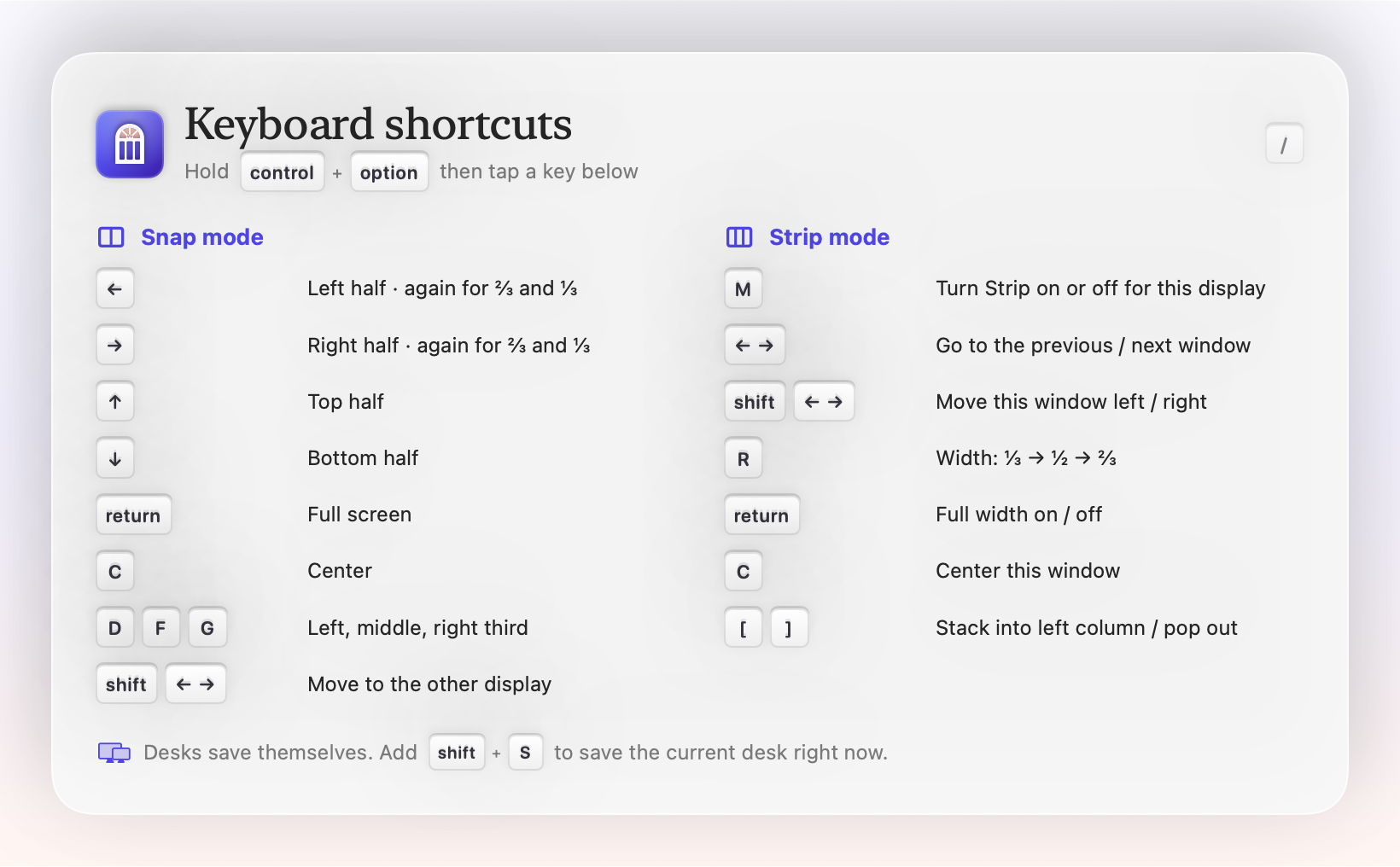
The shortcuts you already know. Press the same key again to go from ½ to ⅔ to ⅓. Send a window to your other display in one move.
- control+option+← Left half
- control+option+D Left third
- control+option+return Full screen
Scroll your windows. Never shrink them.
Turn any display into a scrolling strip, the way niri and PaperWM work on Linux. Every window keeps its width, new ones open right beside you, and your screen glides along the row.
- control+option+M Strip on or off
- control+option+→ Next window
- control+option+R Width ⅓ · ½ · ⅔
Unplug. Plug back in. Everything returns.
Transom remembers where every window lives for each set of displays: laptop alone, home desk, office ultrawide. When a desk reconnects, every window goes back to its screen, its spot and its size. You never set anything up.
- Saved automatically as you work
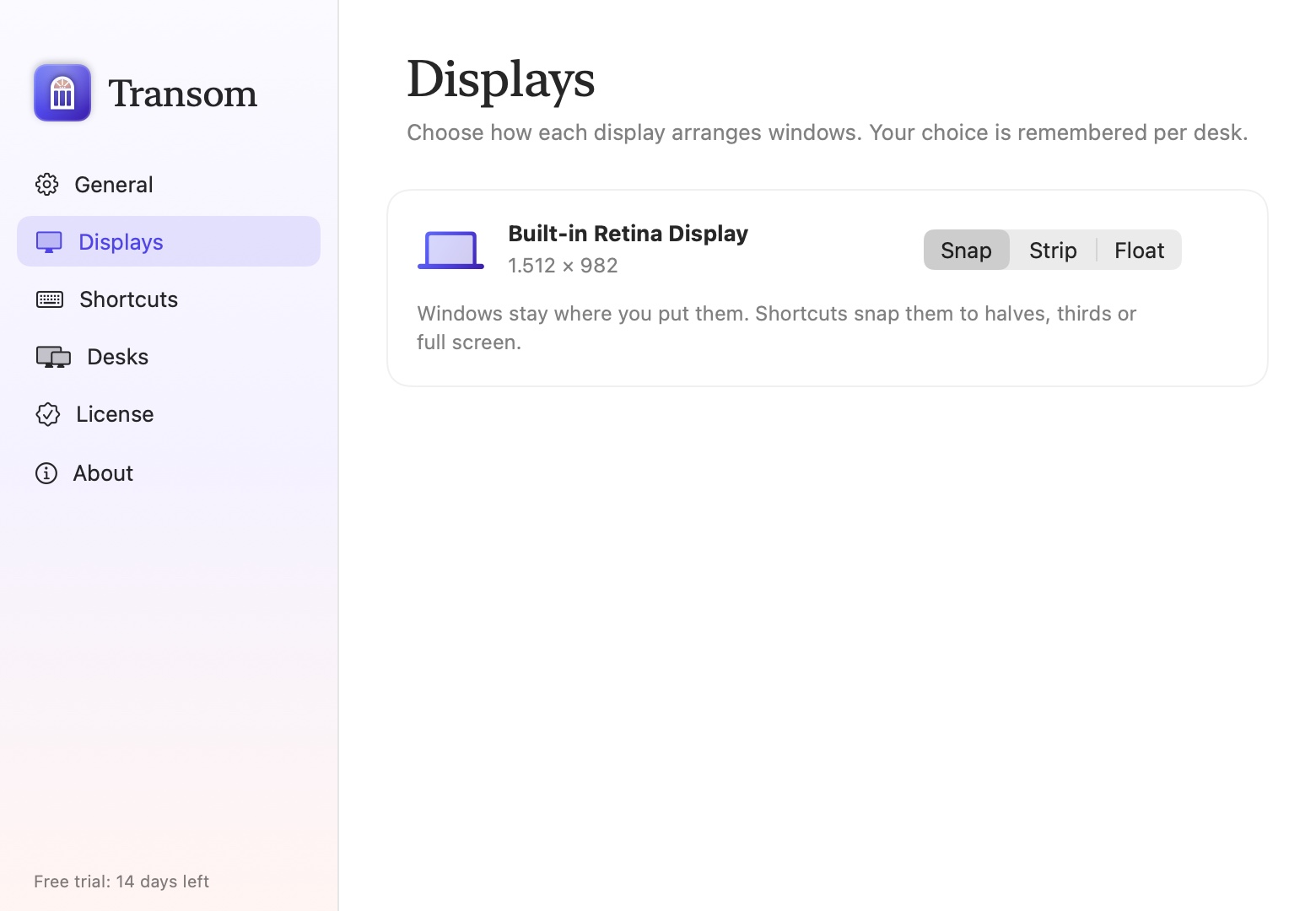
- Snap or Strip remembered per display
- Survives sleep, restarts and new apps
A Mac app that teaches you itself.
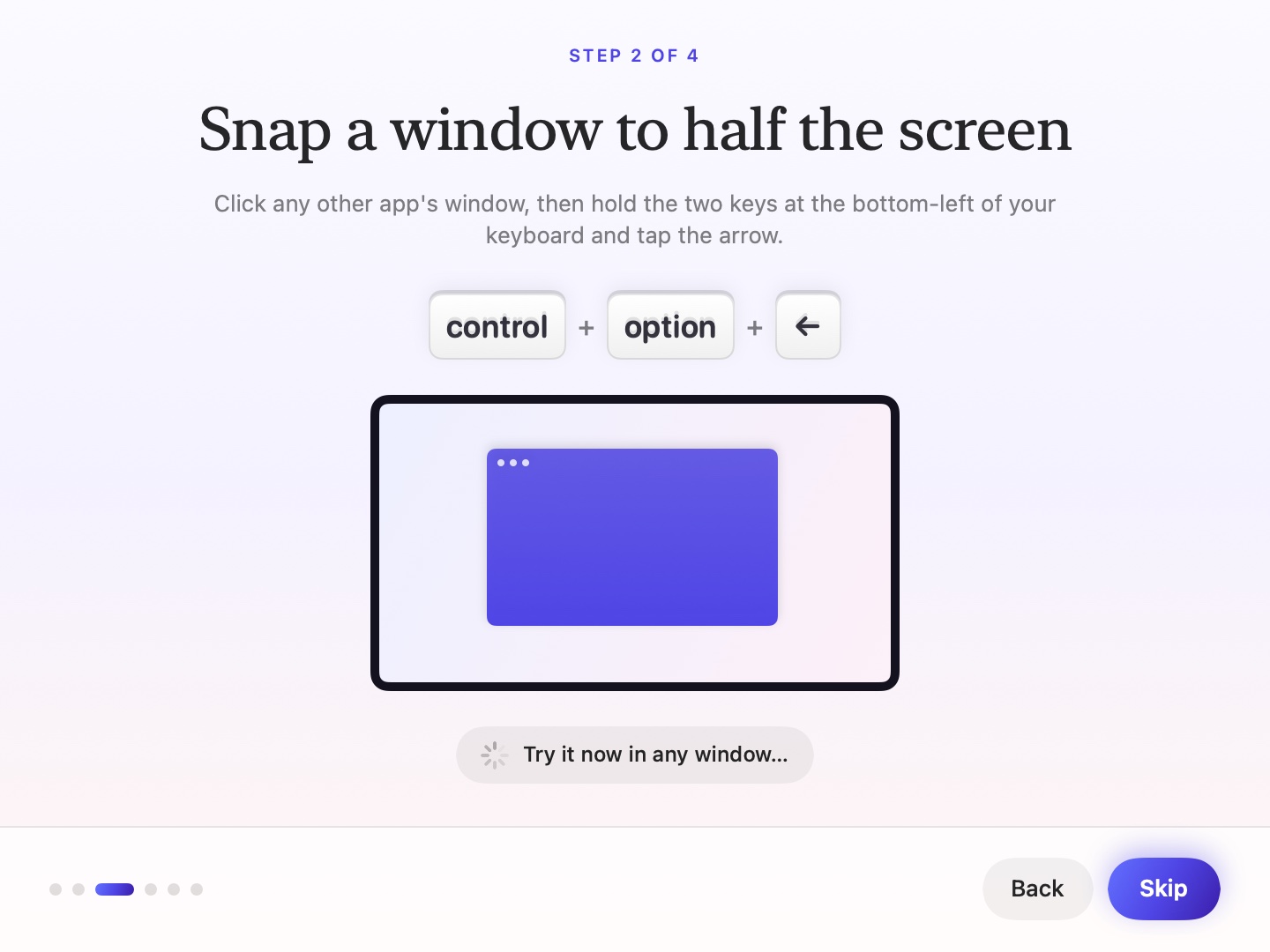
A guided first run has you press each shortcut once and checks that it worked. Forget one later? Press control+option+/ and they're all on screen.
Plug the monitor in and out.
Docked: the monitor scrolls as a Strip (try ← →), the laptop stays in Snap.
Where Transom fits
| Snappers (Rectangle, Magnet) | Tilers (AeroSpace, yabai) | Scrolling (Ribbon, ChainYourMac) | Transom | |
|---|---|---|---|---|
| Snap to halves and thirds | Yes | Partly | No | Yes |
| Windows keep their size as you open more | Manual | No | Yes | Yes (Strip) |
| Different layout per display | No | Partly | Strip everywhere | Snap or Strip per display |
| Restores layout on dock/undock | No (Moom: manual) | No | No | Yes, automatically |
| Config file needed | No | Yes | No | No |
| Free trial | Varies | Free | Varies | 14 days |
Pay once. Try it first.
Every feature free for 14 days. No subscription, ever. 30-day money-back guarantee.
One Mac. Every feature.
- 1 Mac
- Snap, Strip and Desks: every feature
- Free updates for all of version 1
- 30-day money-back guarantee
Use code LAUNCH for $5 off: $14 for the first 500 buyers.
Up to three Macs, same person or family.
- 3 Macs
- Snap, Strip and Desks: every feature
- Free updates for all of version 1
- 30-day money-back guarantee
Questions
What does Transom do?
It arranges your windows. Each display uses Snap (halves, thirds and full screen, like Rectangle) or Strip (a niri-style scrolling row where new windows open beside you and nothing shrinks). Desks remember where every window lives for each set of displays and put them back when you dock or undock.
Is it hard to learn?
No. A one-minute welcome guide has you press each shortcut once and checks that it worked. Every shortcut starts with control + option, and control + option + / shows them all whenever you forget.
Do I need to disable SIP or edit a config file?
No. Transom only needs the Accessibility permission. Everything is set from the menu bar and the Settings window.
What happens to dialogs, popups and Picture in Picture?
They float. Transom only arranges standard, resizable windows, so sheets, panels and popups never reshuffle your layout. You can mark any app as 'always float'.
What if I quit Transom?
Every window goes back to where it was before Transom arranged it. Nothing is left parked off-screen.
Is there a trial or refund?
Yes, both. Every feature is free for 14 days with no account, and if you buy and change your mind, email us within 30 days for a full refund.
Which Macs are supported?
macOS 14 Sonoma or later · Apple silicon.
Give your windows a home.
Free for 14 days. Set up in a minute. Yours for $19.